Tutorial – How to Publish an Article on the ArcheTerre Blog
By Jula Marin – Digital Trainer for Professionals
Introduction
This tutorial will guide you step by step through the process of publishing an article on the ArcheTerre blog (hosted at archeterre.ovh). Whether you are an occasional writer or a regular contributor, these instructions will help you master the publication process, from writing to going live.
⚠️ Prerequisites: You must have a contributor account with publishing rights on the blog. If not, please contact the site administrator.
Accessing the Admin Dashboard
🔗 Step 1: Log in to the Back-Office
Open your browser (Chrome, Firefox, Edge, etc.).
Go to the following URL:
https://archeterre.ovh/wp-admin
🔗 Step 2: Enter your credentials (username + password).
💡 If you’ve forgotten your password, click « Lost your password? » to reset it.
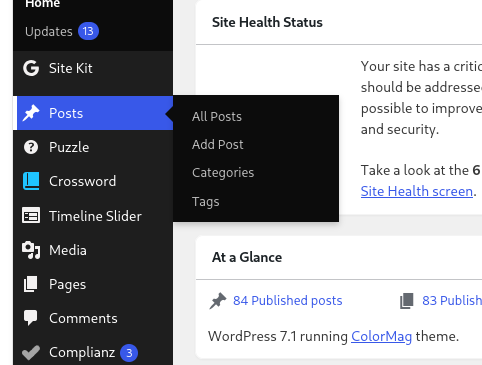
📌 Step 2: Check Your Permissions
Once logged in, you should see the WordPress Dashboard.
In the left or the top sidebar, check that you have access to the « Posts » option.
❌ If this option does not appear, your permissions are insufficient. Contact the administrator.
Creating a New Article
📝 Step 1: Start a New Article
In the sidebar, click on « Posts » > « Add New ».
A new page will open with the WordPress editor (likely Gutenberg, the block editor).
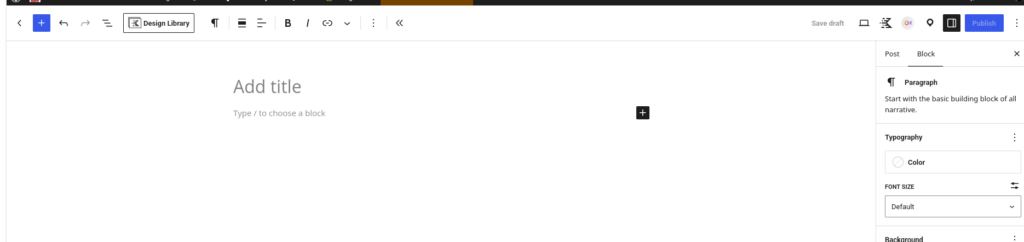
🆕 Step 2: Choose a Catchy Title
Enter the title of your article in the dedicated field at the top of the page.
Writing and Formatting Your Article
✍️ Step 1: Structure Your Content
A well-structured article is more readable and engaging. Here’s a typical structure:
- Section
- Content
- Tips
Introduction
- Hook + subject presentation
- 3-5 sentences max. Use a question or anecdote.
Body
- Development in 2-4 parts
- Use subheadings (H2, H3) to break up the text.
- Conclusion
Summary + call to action
Encourage the reader to comment, share, or take action.
🎨 Step 2: Format the Text
With the Gutenberg editor (block-based):
Headings: Use H2 (main subheadings) and H3 (sub-sections).
- ⚠️ Avoid H1 (reserved for the article title).
- Bold text: For important keywords
- Italic text: For quotes or foreign terms
- Lists: Use bullet points (•) or numbered lists (1.) for enumerations.
- Links: Insert links to reliable sources (click the 🔗 icon in the toolbar).
✅ Example: Discover the ArcheTerre website
📄 Step 3: Use Advanced Blocks
Gutenberg offers specific blocks to enrich your article:
- Paragraph Block: Standard text.
- Image Block: For inserting visuals (see Section 4).
- Gallery Block: For multiple images.
- Quote Block: To highlight a quote.
- Separator Block: To visually divide your article.
- Button Block: To add a call to action (e.g., « Read More »).
4️⃣ Adding Media (Images, Videos, etc.)
🖼️ Insert an Image
Place your cursor where you want to insert the image.
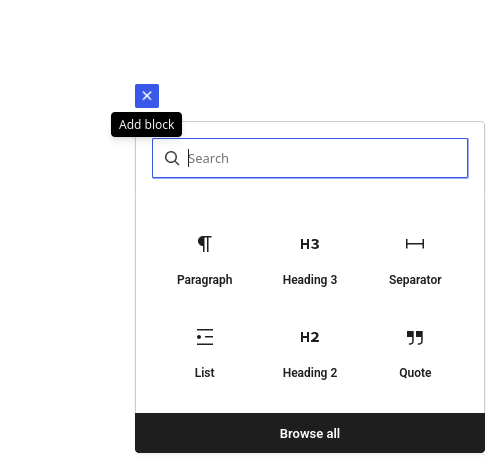
Click the « + » button (add block) > select « Image ».
You have two options:
- Upload: Drag and drop an image from your computer, or click « Upload » to select it.
- Media Library: Choose an already uploaded image.
Once the image is inserted:
- Add alt text (required for accessibility).
- Resize the image by clicking the handles.
- Align the image (left, center, right) via the block options.
Configuring Metadata (Categories, Tags, etc.)
🏷️ Step 1: Choose a Category
Categories help classify your article under a main theme.
In the right column (or at the bottom of the editor), find the « Categories » section.
Check one or more relevant categories.
✅ Examples:Arche Terre if concerning Arche Terre or Outer Lands if not.
the last issue number the last not published right now (21) are the minimum.
If the category does not exist, click « Add New Category ».
Avoid overly generic tags (e.g., « environment »).
📅 Step 2: Schedule Publication
Publish Immediately: Click « Publish » (top right).
Schedule Publication:
Click « Publish » > « Edit » next to « Publish immediately ».
Choose a future date and time.
Confirm with « OK » then « Publish ».
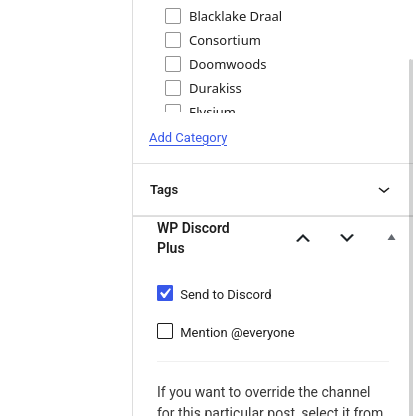
🔍 Step 3: Announce on discord
To improve your article’s visibility: click on send on discord
6️⃣ Previewing and Publishing
👀 Step 1: Preview the Article
Click « Preview » (top right).
Check:
- Display on mobile and desktop (use the icons at the bottom of the preview window).
- Links work properly.
- Images display correctly.
- Text is readable and well-structured.
✅ Step 2: Publish the Article
If everything is correct, click « Publish » (blue button, top right).
A confirmation will appear: « Post published ».
Share your article on social media (Facebook, Instagram, LinkedIn) using the sharing buttons (if enabled).
🆘 Contact Eleawen
If you encounter a technical issue:
Email: eleawen@archeterre.ovh (adjust to the actual address).
📌 Note: This tutorial is designed to be practical and accessible. Feel free to refer to it every time you publish a new article on ArcheTerre. Happy writing!